Estimate Review Queue
 Updated
by
Arianne G.
Updated
by
Arianne G.
The Estimate Review Queue is a filter in Search that places all designated assignments returned from your adjusters into a list for a desk review. The administrator assigns specific estimates to individual reviewers for approval. If your account has this queue turned on, you can see the current status of the assignment on the Assignment Detail page, such as Estimate Not Reviewed.
In the Estimate Review Queue, the carrier and service provider can perform reviews on the same estimate simultaneously without affecting each other’s reviews. The carrier and the service provider can also configure rules, set statuses, run advanced search filters, and create personal rules for their own review processes in the Estimate Review Queue.
The screenshots in this document are generic, and your company’s interface may vary.
Access Estimate Review Queue
You can access the Estimate Review Queue in two ways.
- Within the Assignments menu, select Estimate Review Queue or My Estimate Review Queue. If you select My Estimate Review Queue, you see only estimates assigned to you.
- Or, on the Search page, click the Queue Type dropdown menu and select Estimate Review Queue or My Estimate Review Queue.
Users with Reviewer rights only see estimates assigned to them. Users with Estimate Review Administrator rights see all estimates, regardless of the assigned reviewer.
Filter the Estimate Review Queue
By default, users with only the Estimate Reviewer right have an automatic filter placed in Search that only shows estimates in that user’s estimate review queue. Users with the Estimate Review Administrator right see all estimates when selecting the Estimate Review Queue, but see only their own estimates when selecting My Estimate Review Queue.
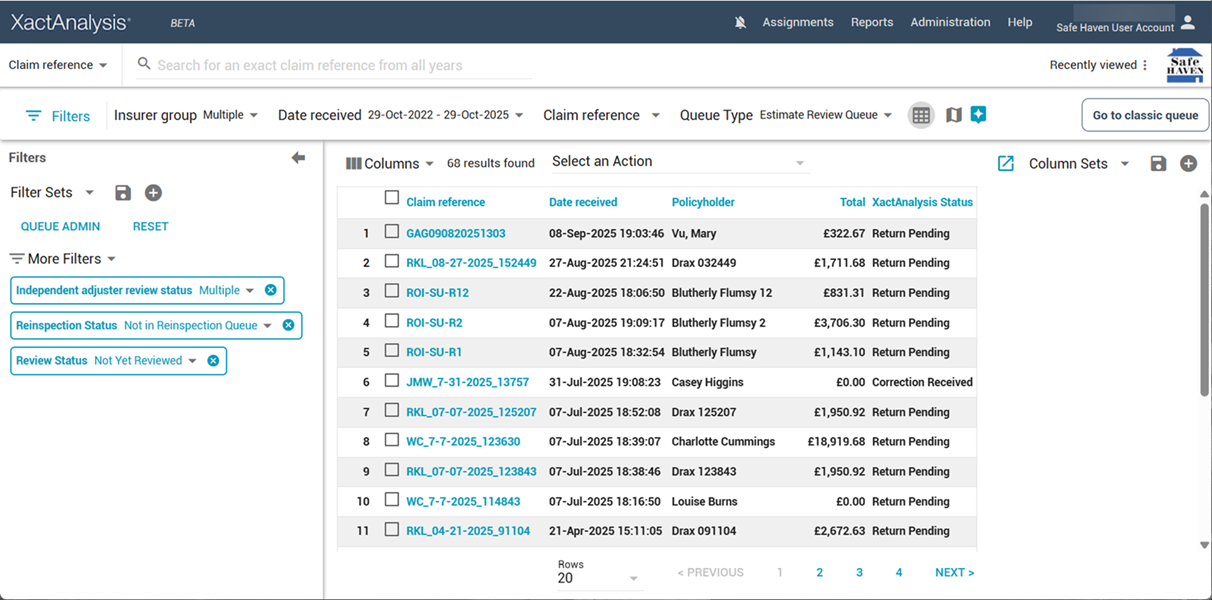
You can further refine your Search results by using additional filters or filter sets. For more information, see Use filters.
Using columns and column sets
You can customize your Search results by adding columns and using saved column sets. For more information, see Use columns.
Manually add assignments to the queue
If you have a specific assignment that you want to add to the queue, manually adding it is often quicker than creating a rule.
- Within Search, select the checkbox of the claim you want to add to the queue.
- Open the Select an Action menu.
- Select Add to Estimate Review Queue.
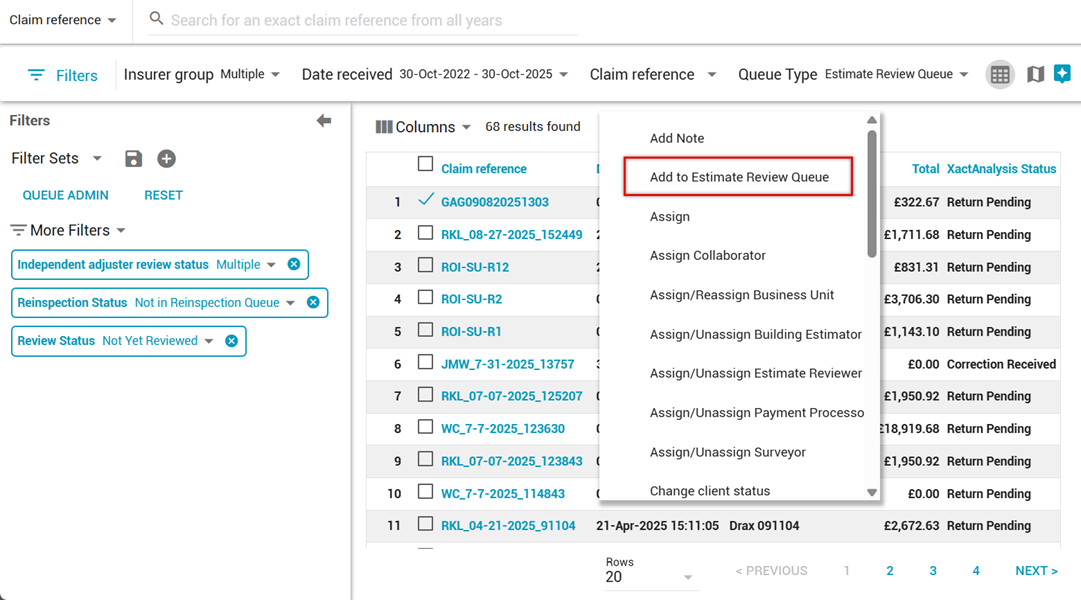
- Select OK.
Administrative tasks
Set up Estimate Review Queue rules
As an administrator, you can set up Estimate Review Queue Rules to look for specific criteria in each returned estimate to determine which estimates go into the queue to be reviewed. You can even configure rules to automatically assign specific reviewers to estimates. Only users with the Estimate Review Administrator rights can access the review queue rules.
- Within the Administration menu, select Queue Admin.
- Make sure you’re on the Queue Rules tab.
- In the Queue Type dropdown, select Estimate Review Queue.
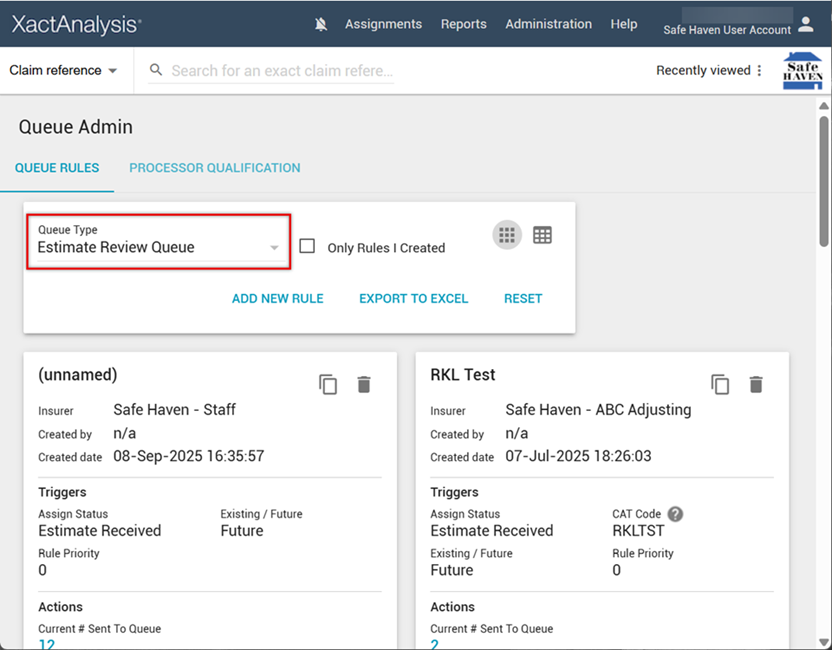
- Select Add New Rule. The Add Queue Rule dialog appears.
- Select the criteria for your rule and select OK. For more information about the fields and menus in this dialog, see Add Queue Rule fields and menus.
In the Queue Admin page with Estimate Review Queue as the queue type, you can also do the following:
- View all rules or only rules you created using the rule filters.
- Copy or delete rules by selecting the Copy or Delete icons in the upper right corner of a rule.
- Export rules to an Excel worksheet by selecting Export All To Excel.
Assign a reviewer
When assigning a reviewer in the Estimate Review Queue, only the reviewers in your account show up in XactAnalysis. Service provider users do not see carrier users, and vice versa. By default, assigned reviewers have to accept the review, as a separate step, before completing it. Please speak to your customer success manager if you would like to turn this feature off and allow a reviewer to complete a review without first accepting it.
Assign from Assignment Detail
- From within an Assignment Detail, open the Select an Action menu.
- Select Assign Reviewer.
- Open the Select a Reviewer menu.
- Select the desired reviewer.
- Select GO.
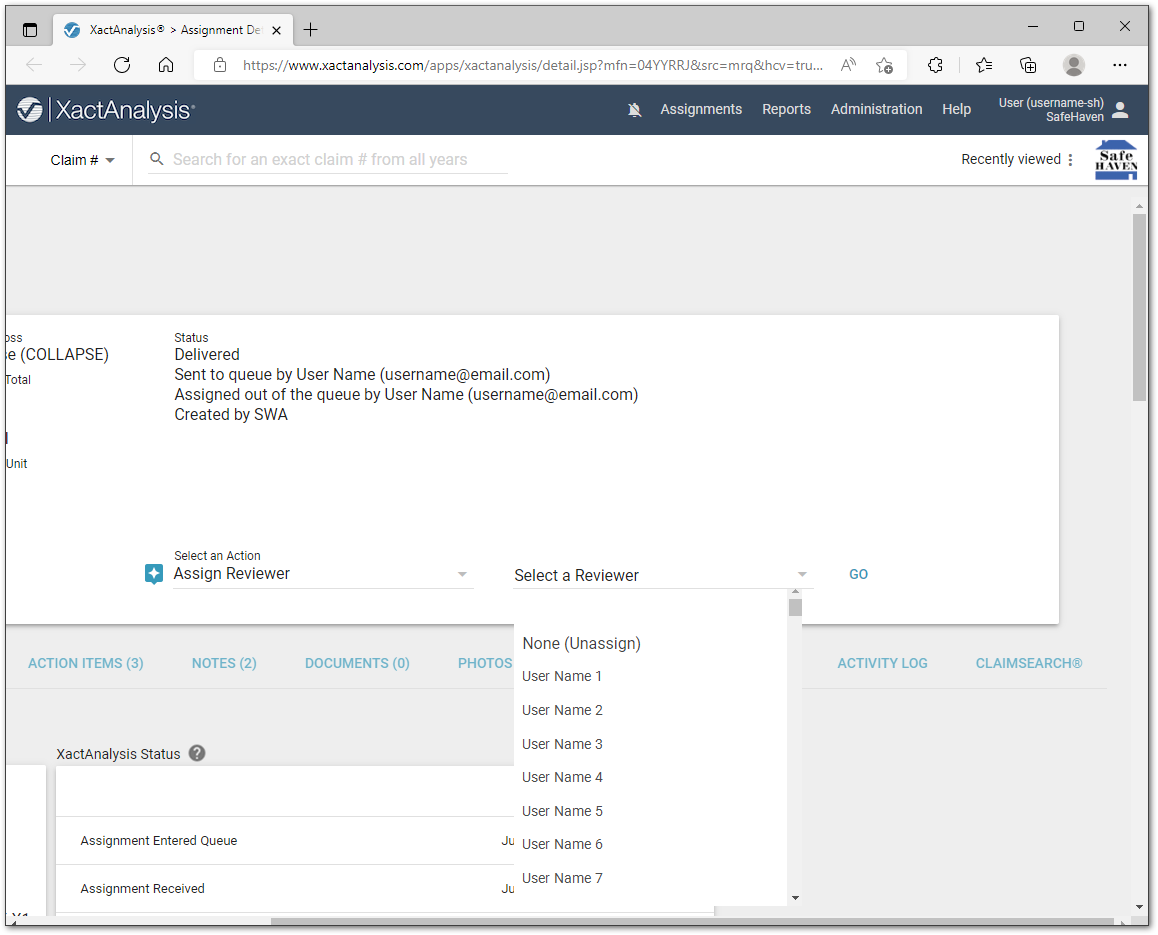
- Select ASSIGN REVIEWER.
Assign from Search
- Within Search, select Estimate Review Queue as the queue type.
- Select the checkbox for each estimate you would like to assign to a reviewer.
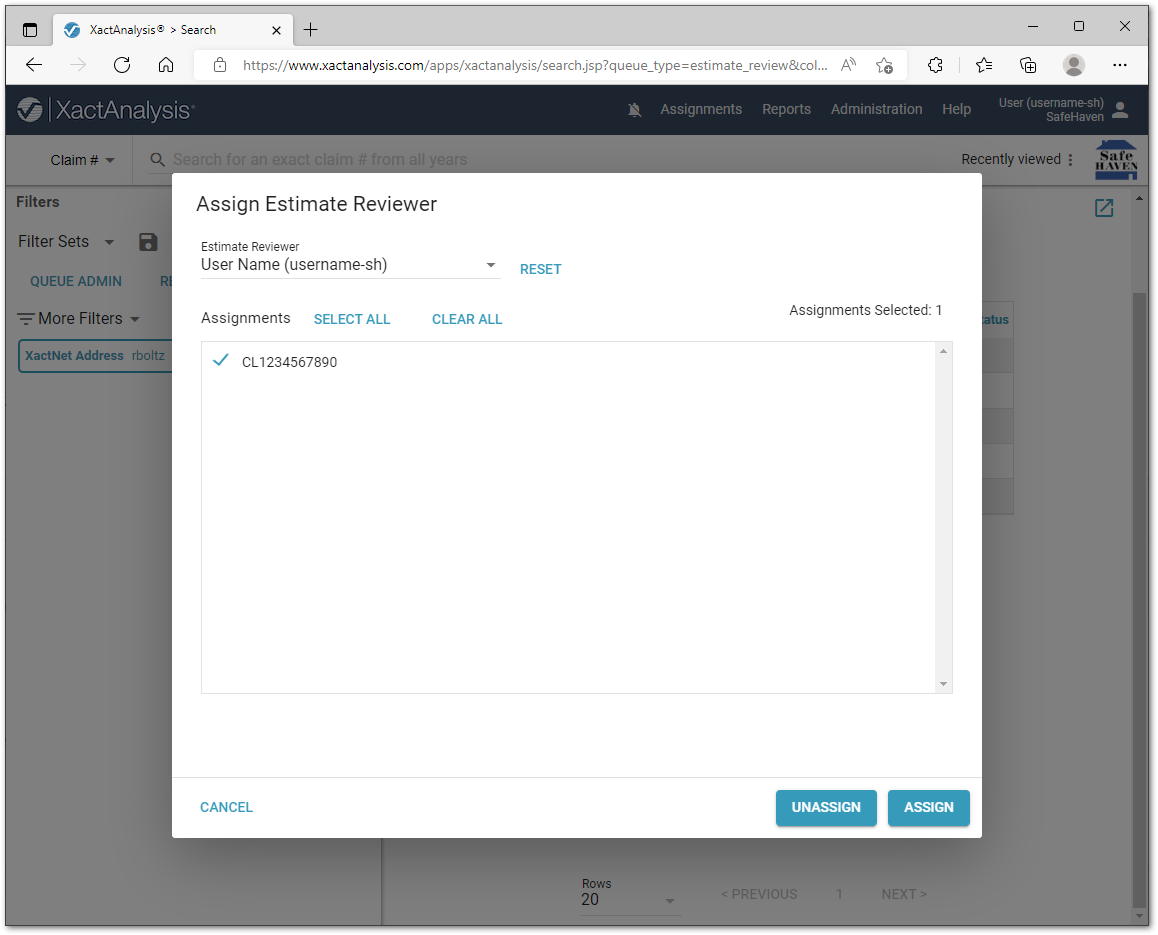
- Open the Select an Action menu and select Assign/Unassign Estimate Reviewer.
- Select a reviewer from the menu that appears.
- Select ASSIGN.
Set Reviewer Rotation
Set Reviewer Rotation allows you to select a group of reviewers and automatically assign them on a rotational basis to assignments added by queue rules.
- Within the Administration menu, select Queue Admin.
- Select the Reviewer Rotation tab.
- Select Set Reviewer Rotation.
- Select the checkboxes for the reviewers you want in the rotation. The rotation order is alphabetical by user name. After a reviewer is selected, they are placed at the bottom of the rotation.
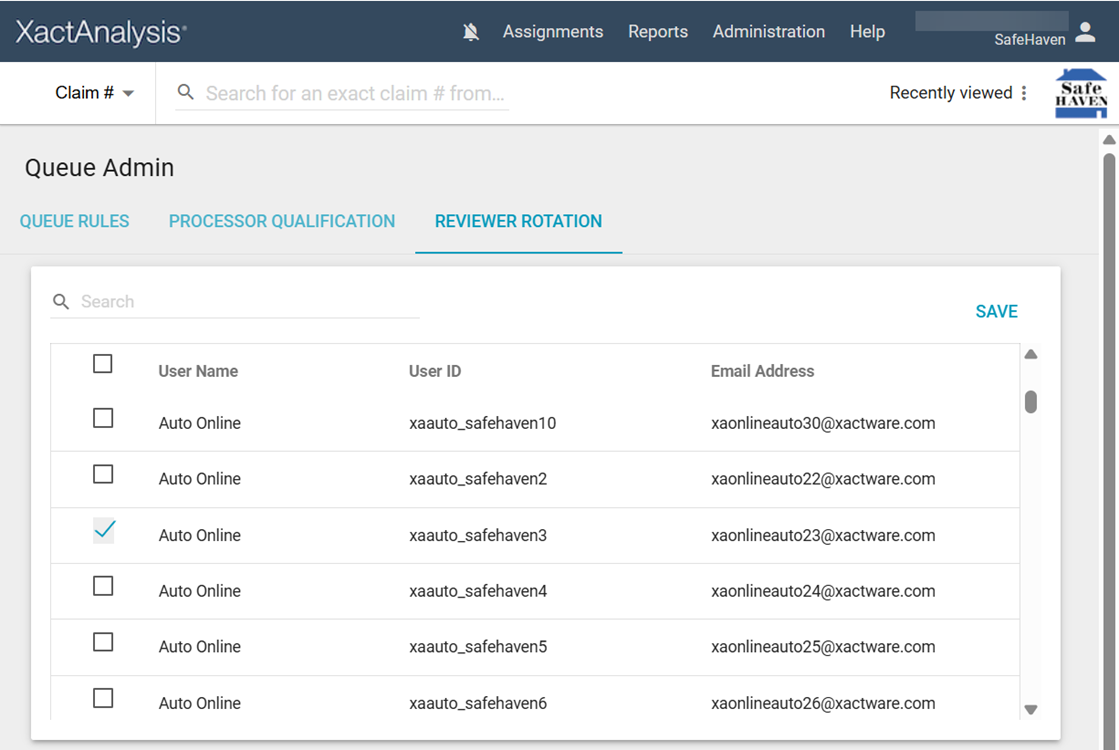
- Select Save.
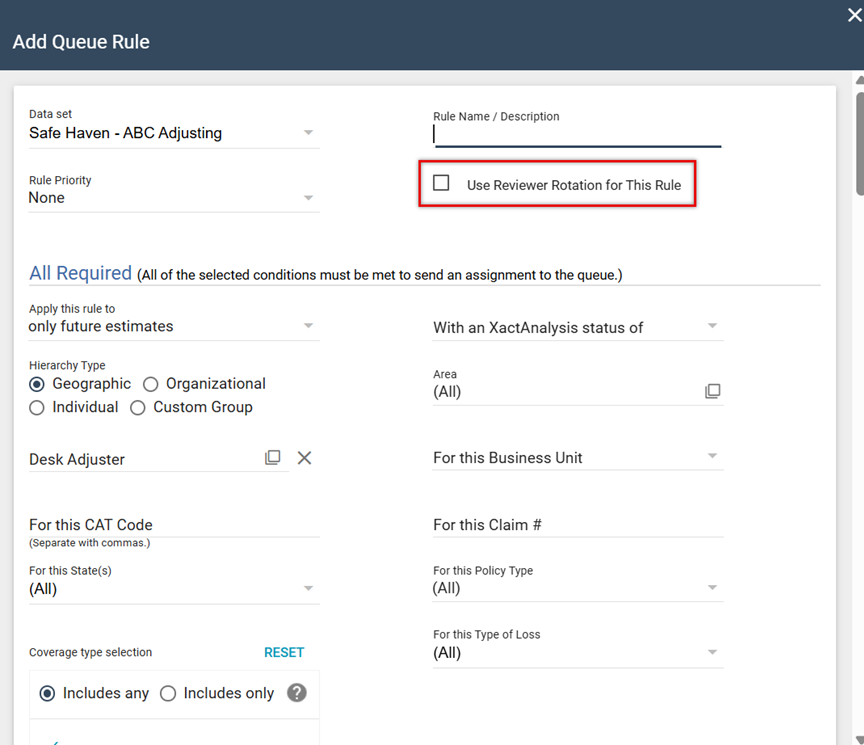
- Decide which of your queue rules trigger the reviewer rotation. You must select the Use Reviewer Rotation for This Rule checkbox in the Add Queue Rule dialog for each of these rules. You can select it when you add a new rule, or you can create a copy of an existing rule, select the checkbox, and delete the old rule.
Reviewer tasks
As a Reviewer, you may view estimate details, approve or reject items, notify others of updates, and mark reviews complete.
Accept estimate review
- Navigate to the Estimate Review Queue.
- Select Estimate Review Queue or My Estimate Review Queue in the Assignments menu.
- Or, on the Search page, click the Queue Type dropdown menu and select Estimate Review Queue or My Estimate Review Queue.
A list of estimates assigned to you appears.
- Select the estimate you want to review. The Assignment Detail page opens.
- There are two ways to accept an estimate review.
- In the Workflow Status section of the Details tab, select Accept Review.
- Or, open the Select an Action menu, select Accept Estimate Review, and select Go.
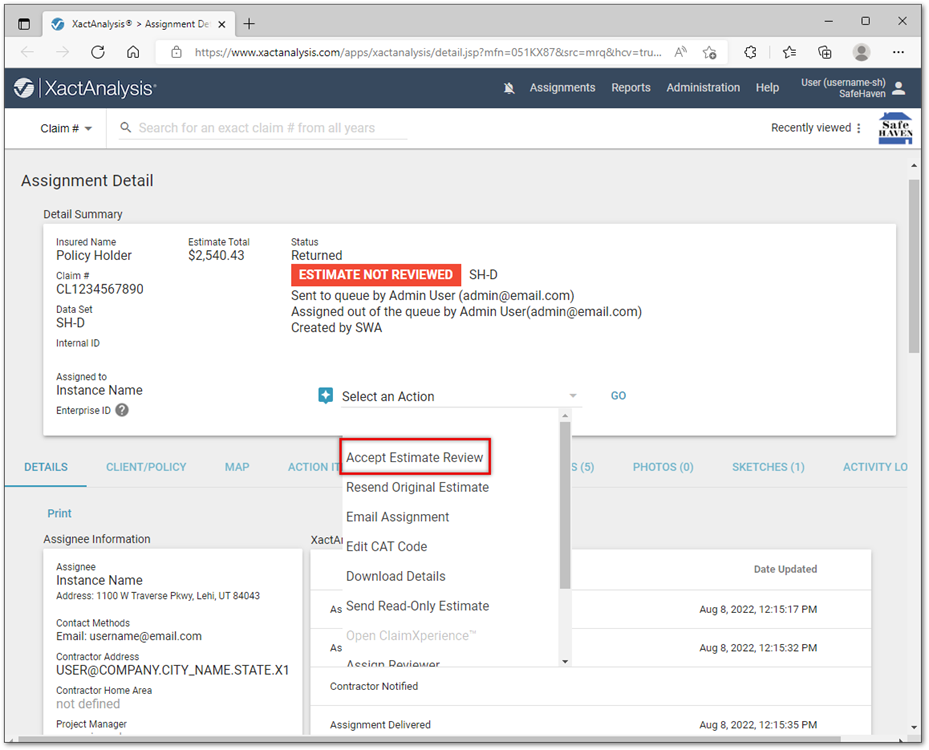
The Update Status to Review Accepted dialog appears.
- In the Update Status to Review Accepted dialog, you can write a note regarding the acceptance of the review.
- You can also send an update status notification to others by email or XactNet address.
- Select Update Status.
Review estimate
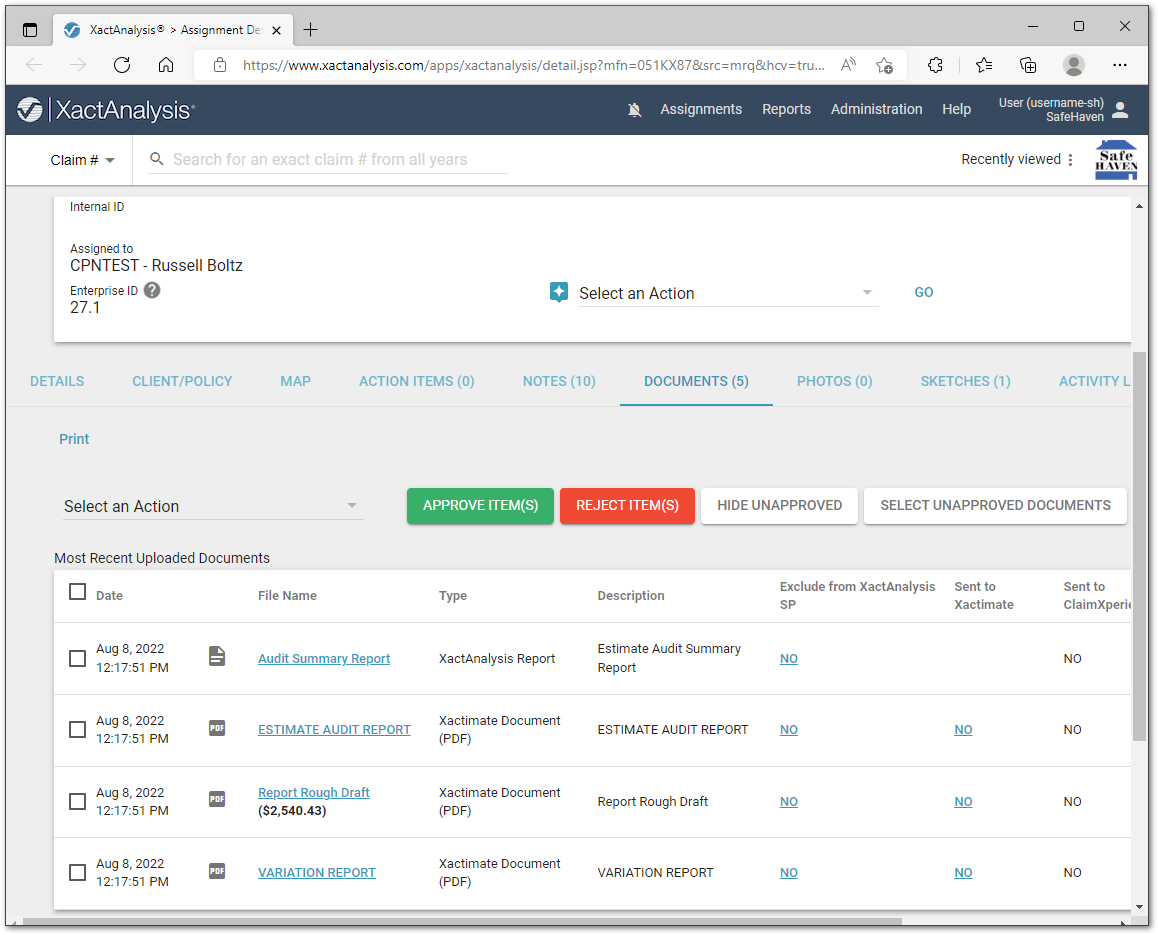
- To review an estimate, you can look over reports in the Documents tab, photos in the Photos tab, and sketches in the Sketches tab. After reviewing the item(s) in a particular tab, select the checkboxes for the items you would like to approve or reject; then click Approve Item(s) or Reject Item(s).
- After you review the estimate, select Complete Review in the Workflow Status section of the Details tab.
- The Update Status to Reviewed dialog appears.
- Select Estimate Reviewed to mark the review as complete,
- Or, select Estimate Reviewed with Exceptions to indicate that you have some reservations about the review process, at which time you can notify the assignee, along with others, by sending an email.
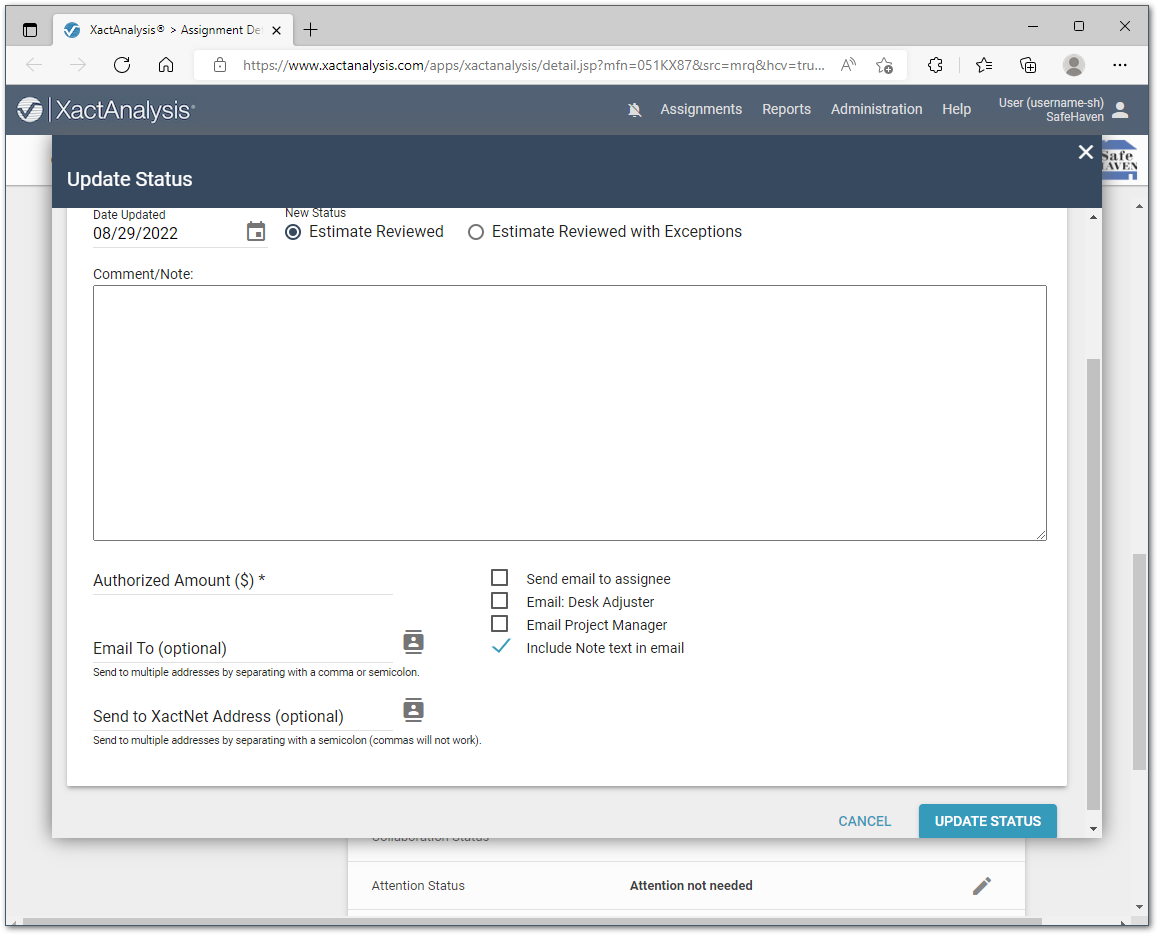
- Select Update Status to complete the review. The status in the Assignment Detail header changes to Estimate Review Complete. The carrier’s review status and the service provider’s review status update to Reviewed in the Workflow Status section. The carrier and the service provider can see the date and time stamp that indicates when each review is completed.