Share media files between assignments
 Updated
by
Arianne G.
Updated
by
Arianne G.
The Share media files feature allows you to share documents, photos, and sketches from one assignment to another when the assignments share the same claim reference or risk address. This eliminates the need to download and re-upload files and preserves file details such as numbering and annotations.
Share media files
- Open the assignment that contains the files you want to share.
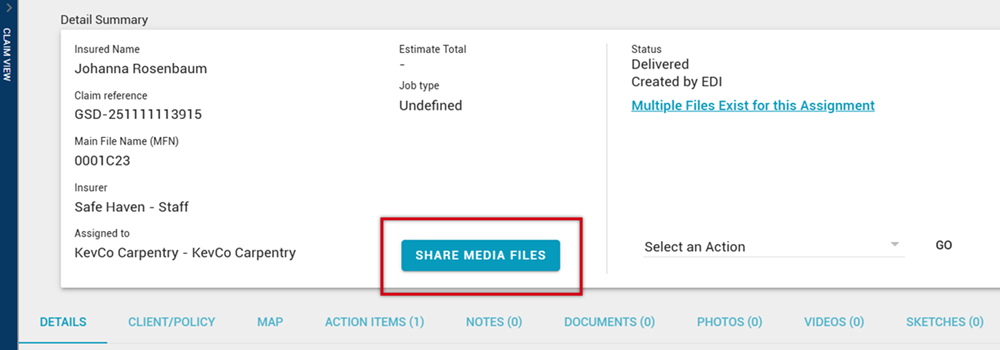
- On the Assignment Detail page, select Share media files. The Share Files window opens and displays a step tracker at the top.
- In the Where do you want to share files to? step, review the list of assignments that match the current assignment’s claim reference or risk address.
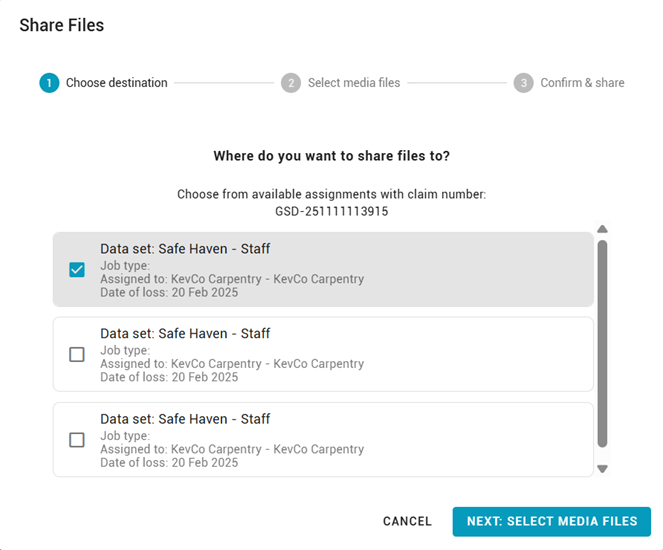
- Select one or more destination assignments.
- Select Next: Select media files.
- View the files available for sharing.
- Files are grouped by type (Documents, Photos, and Sketches).
- Filter tabs appear only for file types that exist in the assignment.
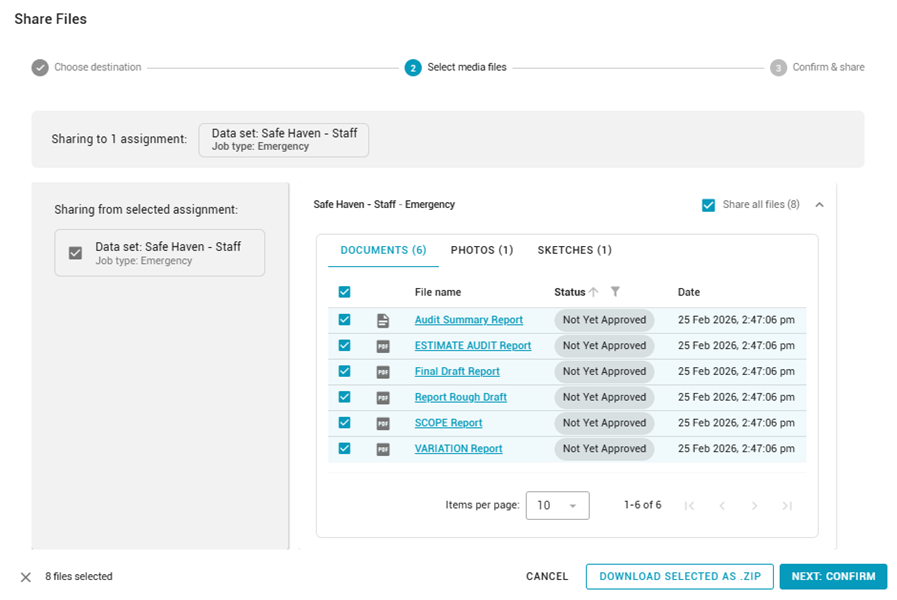
- Choose the files you want to share.
- By default, Share all files is selected.
- Clear the checkbox to select individual files instead.
- You can change selections at any time before sharing.
- (Optional) Select Download selected as .ZIP to download the selected files without sharing them.
- Select Next: Confirm.
- Review the summary to confirm the destination assignment(s) and which files will be shared.
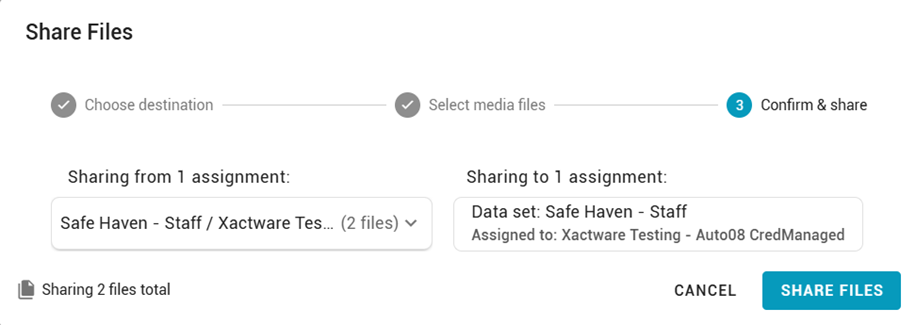
- Select Share files to begin sharing. A confirmation message appears while the files are being copied.
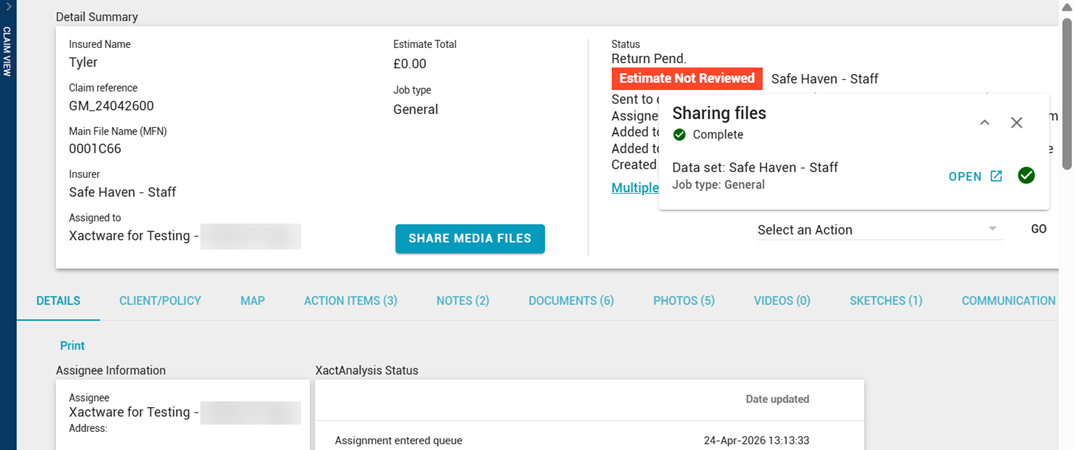
After sharing
The shared files are copied to the destination assignment(s). You can see records of shared files in the Activity Log tab.
Shared document and photo files appear in the destination assignment’s corresponding media sections, just like other uploaded files. Shared sketches appear in the destination assignment’s Documents tab, just as they would have if they had been added using the legacy upload process.