Add Queue Rule fields and menus
 Updated
by
Arianne G.
Updated
by
Arianne G.
- All Required
- Apply this rule to
- With an XactAnalysis status of
- Hierarchy Type
- Area
- Desk Adjuster
- For this CAT Code
- For this Business Unit
- For this Claim #
- For this State(s)
- For this Policy Type
- Coverage Type Selection
- For this Type of Loss
- For this Postal Code
- For Date Range Between
- 1 of every (randomly)
- Percentage to add to queue
- Number of estimates
- For Estimate Value Between
- Estimate Correction Percent
- Compared to referral estimate
- Correction Value
- Job Type
- Overhead & Profit
- Estimate Contains
- Number of trades are
- Selected trades
- Contains pricelist category
- Activity Diary Report Uploads
- Third Party Collaborations
- Test Assignments
- ONE REQUIRED
- LINE ITEMS
- GTA ITEMS
- XACTXPERT
- THIRD PARTY
- OTHER
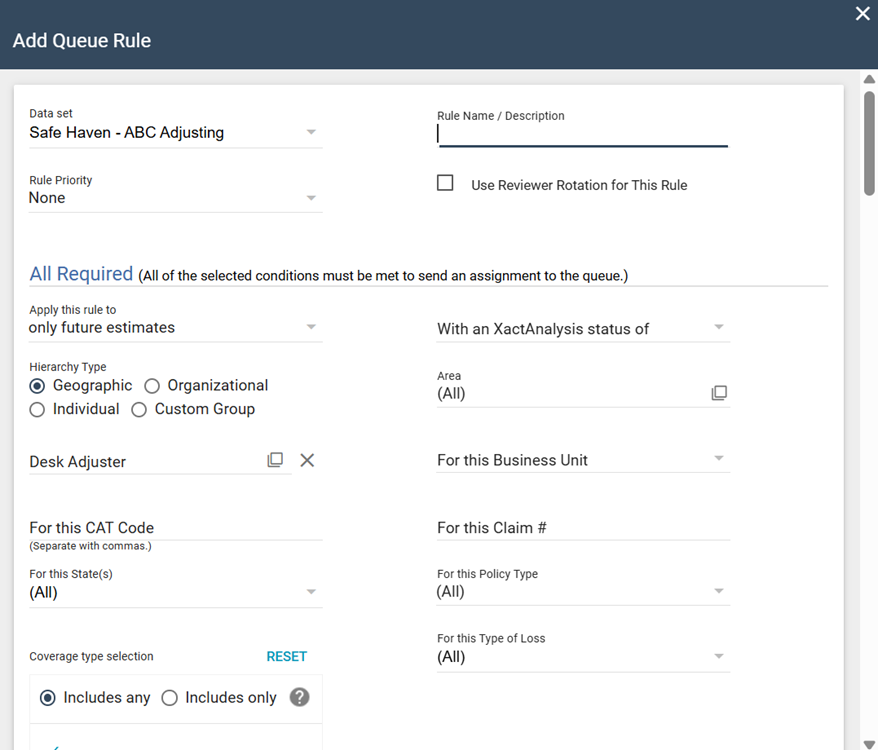
Some of the following fields and menus are only available in certain queues.
Data Set(s)
Select one or more data sets to allow estimates from those data sets to enter the queue.
Rule Name / Description
Enter the name or description of your rule.
Rule Priority
Select a priority for your rule: None, 1 (First Group Processed), or 2 (Second Group Processed). The rules filter estimates based on priority. XactAnalysis filters all the estimates with the first priority rule and then filters the remaining estimates with the second priority rule.
Use Reviewer Rotation for This Rule
Select this checkbox to use reviewer rotation for this rule.
All Required
All of the selected conditions in this section must be met to send an assignment to the review queue.
Apply this rule to
Select whether to apply the rule to future or existing estimates.
With an XactAnalysis status of
Select a status or leave it as (All). See Statuses for status definitions. If you select Canceled or Client Approved, then you can also filter by how that status is set (Automatically, Manually, or Either).
Hierarchy Type
Select a hierarchy type: Geographic, Organizational, Individual, or Custom Group.
Area
Select an area for the rule. Leave it as (All) to allow assignments from all data set (program) areas into the review queue.
Desk Adjuster
Select a desk adjuster. Leave this field blank to allow estimates with any desk adjuster into the queue.
For this CAT Code
Enter a CAT Code into the auto-complete field and select from the list. To enter more than one CAT Code, separate them by commas. Leave this field blank to allow estimates with any CAT code into the review queue.
For this Business Unit
Select a business unit from the menu. Select (All) to allow estimates with any business unit into the review queue.
For this Claim #
Enter a claim number. Leave this field blank to allow any claim number into the review queue.
For this State(s)
Select one or more states from the menu. Leave this field blank to allow estimates from any state to enter the queue.
For this Policy Type
Select a policy type from the menu. Select (All) to allow estimates with any policy type to enter the queue.
Coverage Type Selection
Estimates can have three coverage types: Structural, Other structures, and Contents. Use Includes any or Includes only to determine which coverage type(s) an estimate should have to enter the queue.
- Includes any: This identifies estimates that include any, some, or all of the selected coverage type(s).
- Includes only: This identifies estimates that only have the selected coverage type(s).
For this Type of Loss
Select one or more types of loss from the menu. Select (All) to allow estimates with any type of loss into the review queue.
For this Postal Code
Enter one or more postal codes (separated by commas). Leave this field blank to allow all estimates from all postal codes into the review queue.
For Date Range Between
Select a date range or select Monthly, Quarterly, or Annually from the menu. The rule is applied to estimates within the specified range only or is applied monthly, quarterly, or annually. Leave these fields blank if you do not wish to apply a date range to the rule.
1 of every (randomly)
Enter a number to set up random reviews for one of every [number] estimates.
Percentage to add to queue
Enter a percentage of claims to randomly be added to the queue.
Number of estimates
Enter a number of estimates to send to the review queue. Select the per adjuster/contractor checkbox to send a specific number of estimates based on the number of adjusters and contractors you have set up to review assignments.
For Estimate Value Between
Enter a value range.
Estimate Correction Percent
Enter a percentage that the estimate correction must exceed to enter the review queue.
Compared to referral estimate
Select this checkbox to create a rule that catches referral estimates with different values from the original estimate by the percent or value amount entered in the fields above the checkbox.
Correction Value
Enter an amount the estimate correction must exceed to enter the review queue.
Job Type
Select a job type.
Overhead & Profit
Select whether to include estimates with O&P or No O&P, or leave it blank for neither.
Estimate Contains
Select whether or not to include Overhead and Profit as part of your rule.
Number of trades are
Select whether or not to include estimates greater than or less than a certain number of trades, or leave this field blank for neither. Enter the greater than or less than number in the provided field.
Selected trades
Click this field to select which trades are included in this rule.
Contains pricelist category
Select a price list category from the menu.
Activity Diary Report Uploads
Select the checkbox to exclude activity diary report uploads.
Third Party Collaborations
Select the checkbox to exclude third-party collaborations.
Test Assignments
Select the checkbox to include test assignments. Leave it unchecked to exclude test assignments.
ONE REQUIRED
This section appears when you select Apply this rule to only future estimates in the All Required section. One of the selected conditions must be met to send an assignment to the review queue.
Audit Results
- Select Any to send estimates with any audit results into the review queue.
- Select Corrected to send estimates in which audit violations have been corrected into the queue.
- Select Not Corrected to send estimates in which audit violations were not corrected into the queue.
- Select Specific, and one or more audit results from the list that appears, to send estimates specific audit results into the review queue.
Audit Violation Count
Enter a number. All estimates with that number of violations are sent to the review queue. Select the Greater than checkbox to send estimates with violations totaling more than the entered number to the review queue.
Category - Selector Codes within Estimate Include
Select the checkboxes to include estimates with specific selector codes in the review queue.
Line Item Quality
Select the checkboxes to include estimates with specific line item qualities in the review queue.
Price List
Select Deviations to send estimates with price list deviations into the review queue. Select Price Only Deviations to identify estimates by the number of items with deviations or by the deviation amount.
Pricing Variations
Select the checkboxes to send estimates with pricing variations into the review queue. Options include Basic, NFCP, Not in Price List, and $0.00 Item.
Item Rate Association
Select the checkbox to specify if the rule is triggered on the Household or Contractor rate.
LINE ITEMS
This section allows you to create queue rules based on the line items included in estimates.
- Use the All Required section to identify estimates with all the line items you enter here.
- Use the One Required section to identify estimates with at least one of the line items you enter here.
You do not need to enter information into each menu and box. For example, you could use only the Category menu to send estimates to the queue with line items from a specific category.
- Select a Country.
- Select the Line item type, custom or standard.
- Select the Category for the line item. The Activity box is automatically filled in.
- Choose a Selector.
- Choose whether the rule looks for a line item with a specific amount (equal to the number you enter) or a line item with more or less than a specific amount.
- Choose whether the rule looks for items at the line item level or the estimate level. Line item rules look for a single line item that matches the criteria. Estimate level rules look for a total of line items that match the criteria.
- Select whether the rule will look for corrected line items, not corrected, or neither.
To add more line item identifiers, select Add. To remove a line item, select the Delete icon.
GTA ITEMS
This section allows you to create queue rules based on an estimate's grand total adjustment percentage or value. The rule is triggered when one or both criteria are met.
Percent
Enter a percentage of the estimate subtotal. The rule is triggered if the estimate's grand total adjustment is greater than this percentage of the estimate subtotal.
Value
Enter a monetary value. The rule is triggered if the estimate's grand total adjustment is greater than this value.
XACTXPERT
Set the profile, instance, and data set scores required to enter the queue.
The profile, instance, and data set scores are comprised of a process score and an estimate score. You can set score ranges for the total score, process score, and estimate score with greater than, less than, or equal to conditions.
For more information on XactXpert, see the XactXpert articles for Xactimate online.
THIRD PARTY
Filter Option
Select the checkbox to only include estimates that contain items in the fields selected below.
Accurence™ QualityAssist Score
Choose whether to include estimates with total scores greater than or less than a given value, or between two given values.
Accurence™ QualityAssist Score Sublevel
Choose whether to include estimates with an Accurence Process Score, or an Accurence Dollar Variation Score that is greater than or less than a given value, or between two given values.
Asservio Scan Score
Choose whether to include estimates with total scores greater than or less than a given value, or between two given values.
MICA™ Score
Choose whether to include estimates with total scores greater than or less than a given value, or between two given values.
MICA™ Score Sublevel
Choose whether to include estimates with a MICA Process Score, or a MICA Dollar Variation Score greater than or less than a given value, or between two given values.
MoistureScore™
Choose whether to include estimates with total scores greater than or less than a given value, or between two given values.
MoistureScore™ Sublevel
Choose whether to include estimates with Key Process Indicators, Mitigation Process Management, or Response Time Management scores greater than or less than a given value, or between two given values.
OTHER
Select an action to occur when an estimate meets the criteria of this rule.
Notification Language Setting
Select a language in which to receive the notification. Languages include English (United States), English (Canada), and français (Canada).
Client Approval
Select Manual to allow client reviewers to manually review and approve the estimates in the queue. Select Auto Approve to automatically approve the estimates in the queue based on the criteria of the rule.
Email To
Enter one or more email addresses (separated by commas). XactAnalysis sends an email to the specified addresses when an estimate triggers this rule and is sent to the Estimate Review Queue.
Automatically assign to
Enter the name of a specific reviewer or select (All). Estimates sent to the queue by this rule are automatically assigned a reviewer that you specify here.