The Verisk Identity Hub
 Updated
by
Arianne G.
Updated
by
Arianne G.
The Verisk Identity Hub allows you to create and manage your account, username, and password. For more information on the Verisk Identity Hub, visit our Verisk Identity Hub FAQs page in the eService Center.
Create an Xactware ID
To create a new Xactware account, open the Verisk Identity Hub and complete the following steps:
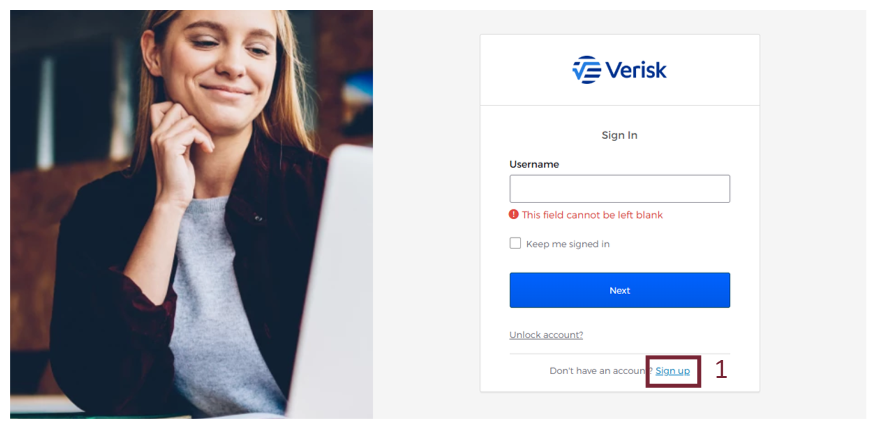
- From within the Verisk Identity Hub, select Sign up.
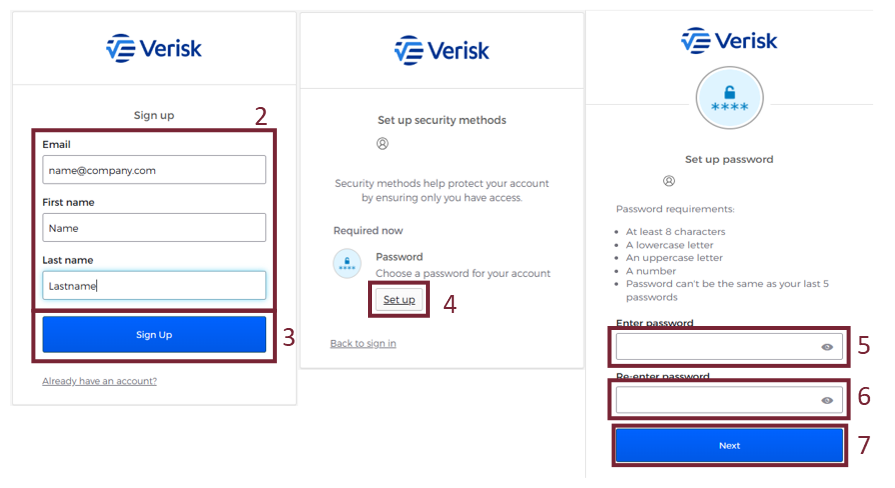
- Fill out the form.
- Select Sign Up.
- Select Set up.
- Enter a password.
- Re-enter the password.
- Select Next.
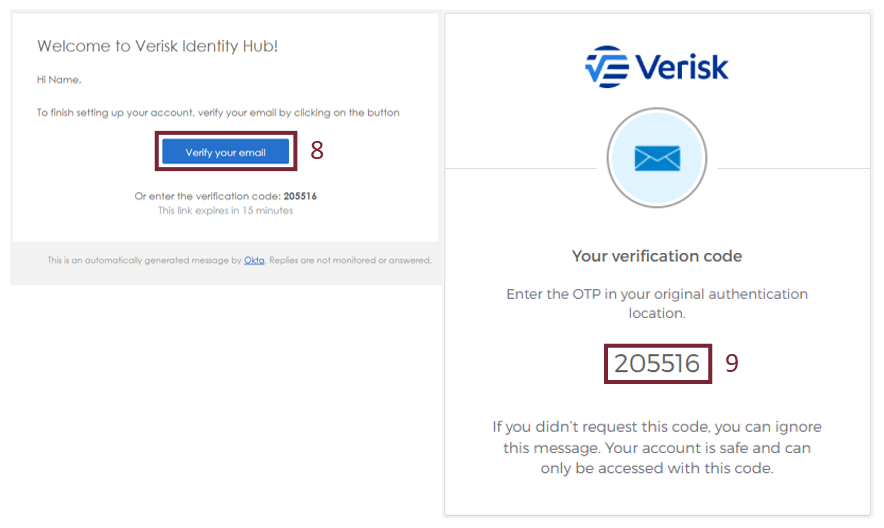
- In the email you receive from Verisk to the address you provided, select Verify your email. Once done, an additional window opens with your verification code.
- Copy the code given in the new window.
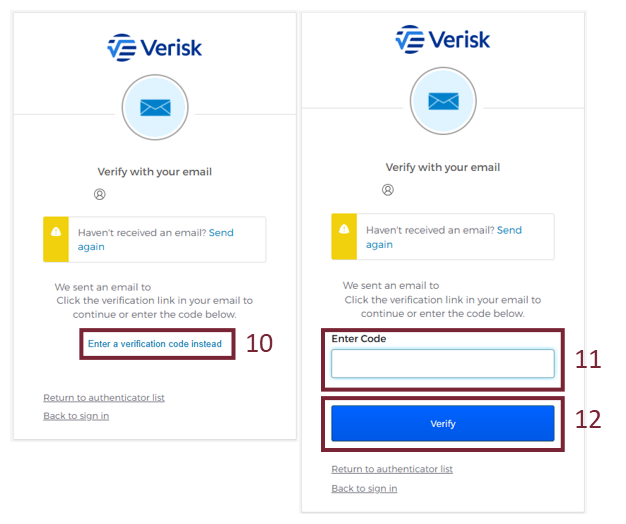
- Return to the original Verisk Identity Hub window and select Enter a verification code instead.
- Enter the verification code from Step 9.
- Select Verify. The Xactware ID is now created and active.
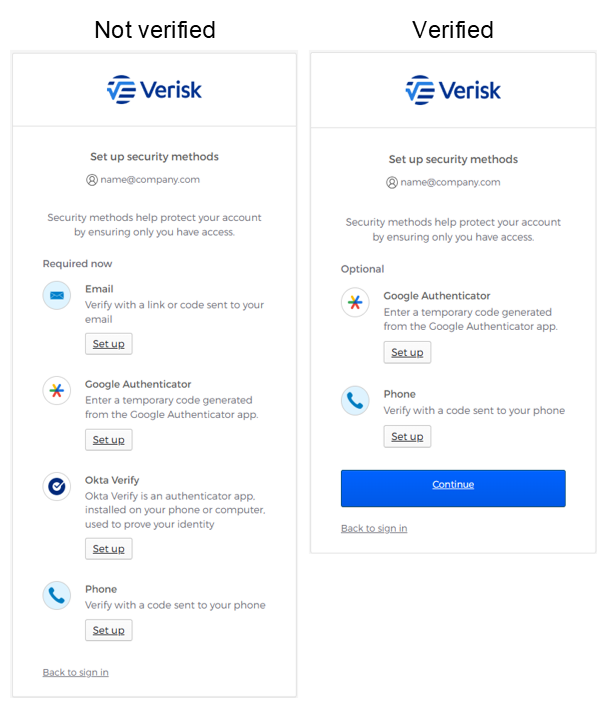
Select Continue to proceed into the Verisk Identity Hub site. If you have questions about the hub or want more information, see Verisk Identity Hub FAQs and Create and edit accounts in the Verisk Identity Hub in the eService Center.
Modify your Xactware username/email
If you need to change your username and email, complete the following steps:
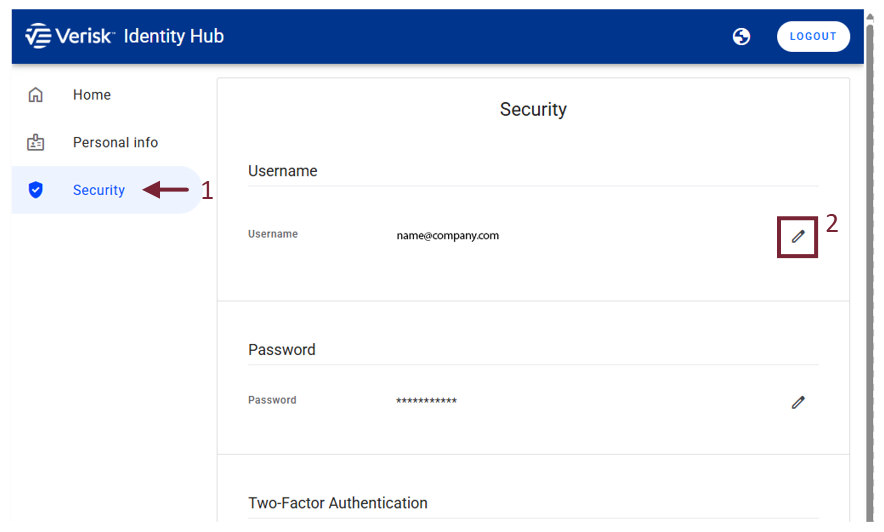
- From within the Verisk Identity Hub, select Security.
- In the Username section, select the Edit icon.
- Edit the email address.
- Select the blue checkmark. An email is sent to the new email address with a verification code.
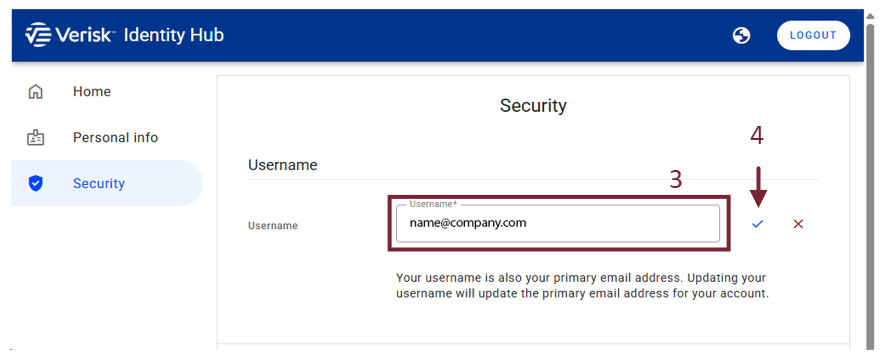
- In the email you receive from Verisk to the new address you provided, copy the code provided.
- In the hub window, enter the verification code from the new email.
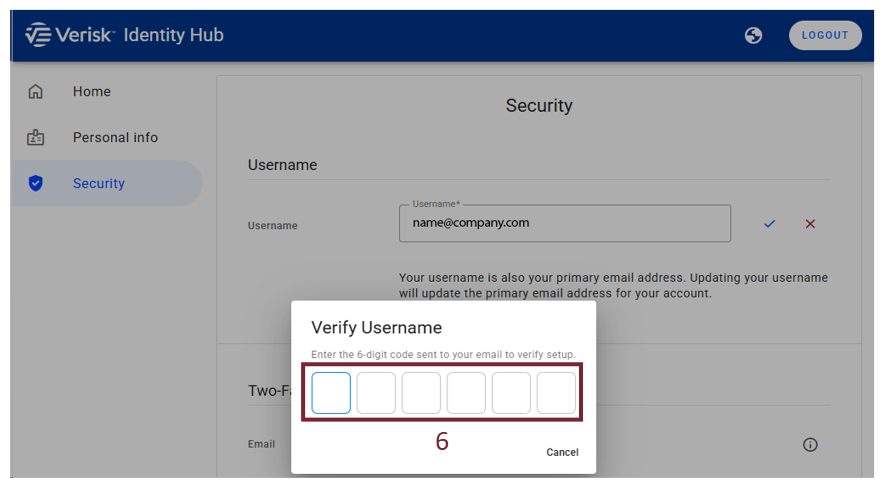
Once you enter the code correctly, the new email becomes the username.
Modify your Xactware password
If you need to change your password, complete the following steps:
- From within the Verisk Identity Hub, select Security.
- In the Password section, select the Edit icon.
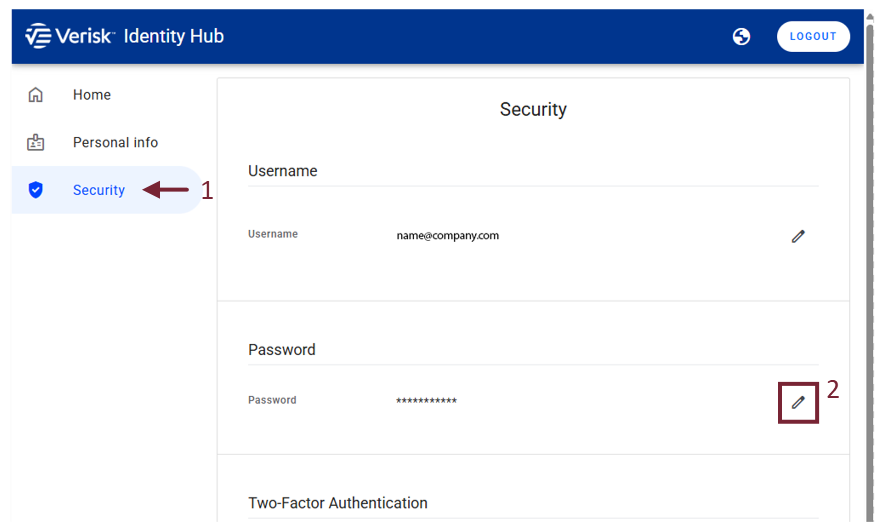
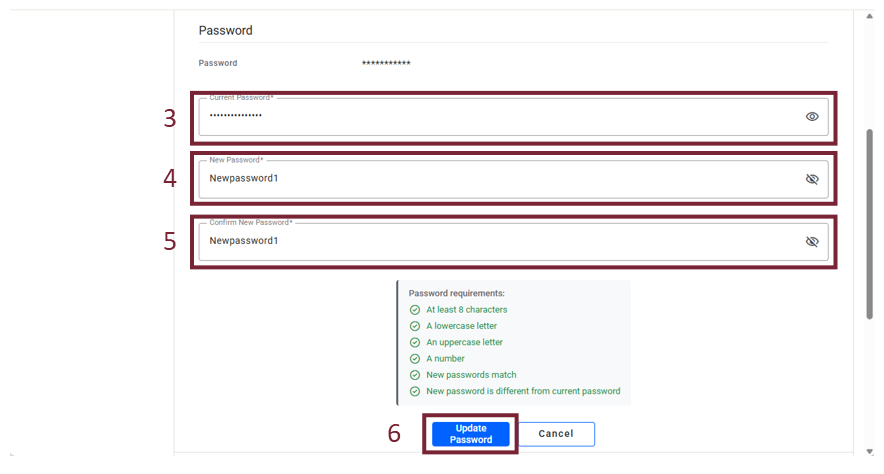
- Enter your current password.
- Enter a new password.
- Enter the new password again in the Confirm New Password field.
- Select Update Password.